


For an introduction to the gRPC Worker Templates, please see Using the gRPC Worker Templates – Introduction. It is recommended that you read through this before starting this guided walkthrough.
Important: LabVIEW 2019 or later is required (for the gRPC libraries)
Important: Download grpc-labview.zip from the NI gRPC LabVIEW repository on GitHub and install the three VI packages it contains before creating the template projects. The gRPC Worker templates will not work without them.
VI package
ni_lib_labview_grpc_library-1.7.0.1.vip
ni_lib_labview_grpc_servicer-1.7.0.1.vip
ni_lib_grpc_server_and_client_template[2]-1.7.0.1.vip
Download the gRPC Worker templates from Github
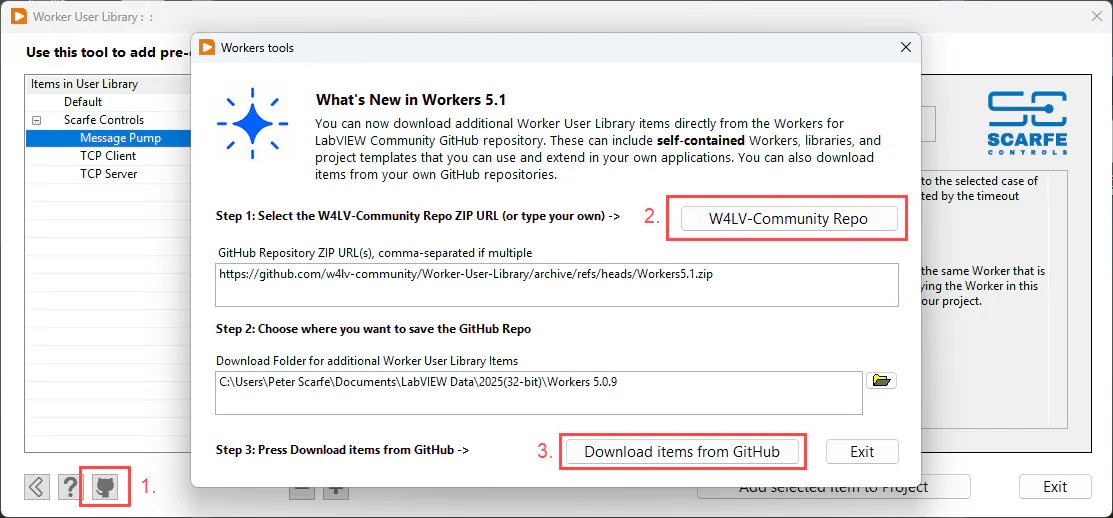
Make sure you have an active internet connection and can access GitHub. Then open the Workers 5.1 Worker User Library tool and follow these steps:
Press Pull from GitHub. A dialog will open.
Press W4LV-Community Repo to automatically copy the GitHub repository URL into the control below.
Press Download items from GitHub. The tool will download the Workers Community GitHub repository as a ZIP file, unzip it, and save the new library items.
Create a copy of the gRPC Worker Templates
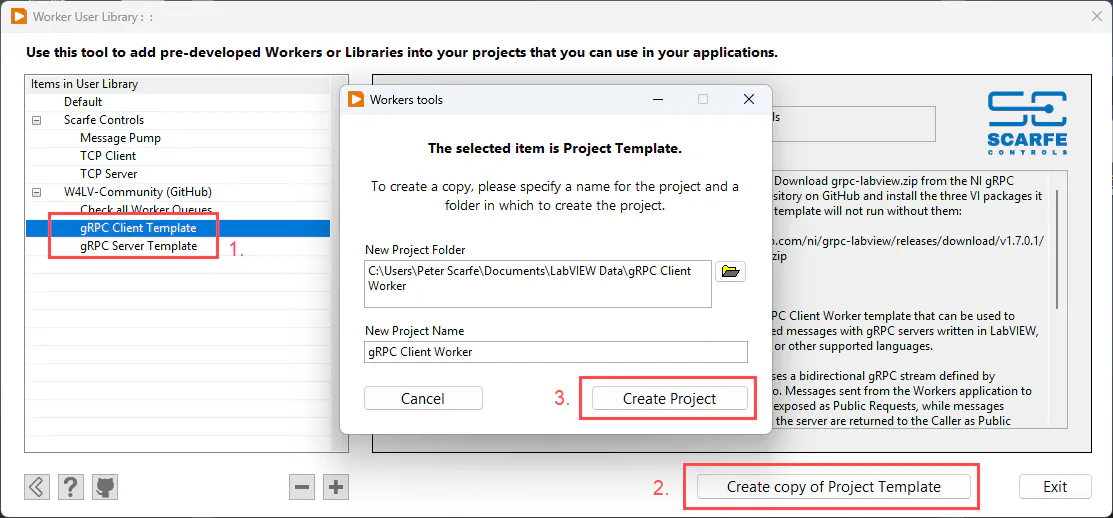
After the download from GitHub completes, you should see the gRPC Client and Server Templates in the Items in User Library list.
The next step is to create your own copies of both templates:
Select the gRPC Client Worker Template from the list.
Press Create copy of Project Template. A dialog will appear.
Make sure the path where you want the project to be copied is correct. Important: remember this path, as you will need it later. When ready, press Create Project.
After the project has been successfully created, repeat the steps above to create a copy of the gRPC Server Worker Template.
After both projects have been successfully created, close the Worker User Library tool.
Testing the gRPC Server and Client Worker Templates
Before modifying the templates, let's first verify that the original Server and Client Workers can communicate with each other.
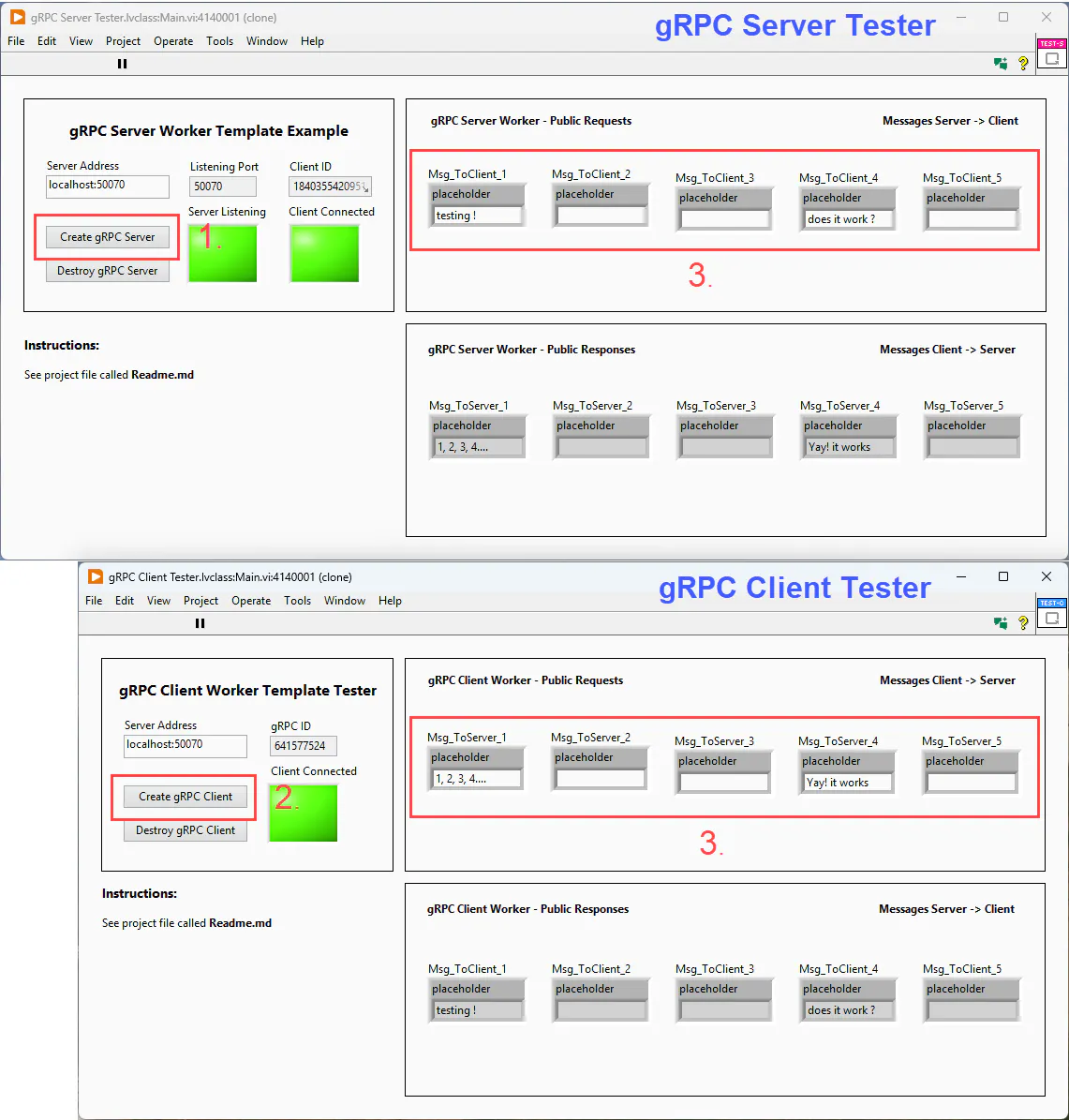
Run the Launcher VIs in both projects. You should see the front panels of the gRPC Server Tester and gRPC Client Tester Workers appear.
Follow these steps:
On the gRPC Server Tester, press Create gRPC Server to create and start the gRPC Server. The Server Listening LED should light green.
On the gRPC Client Tester, press Create gRPC Client to connect the gRPC Client to the Server. The Client Connected LED on the Client Tester should light green. The Client Connected LED on the Server Tester should also light green.
Now that the connection between the Server and Client has been established, enter text into any of the five message controls on either tester. The text should appear in the corresponding message indicator on the opposite tester, demonstrating that messages are being sent and received in both directions.
Press Destroy gRPC Client and Destroy gRPC Server, then close both applications and exit LabVIEW completely.
Part A : gRPC Client Worker Project
Modifying template.proto
For the next step, we will modify some of the default message payloads in template.proto.
Go to the folder where you saved your gRPC Client Worker project and do the following:
Delete the folder called Generated_client. (Later on we will re-generate this folder using the NI gRPC Code Generator tool.)
Open template.proto in your preferred text editor.
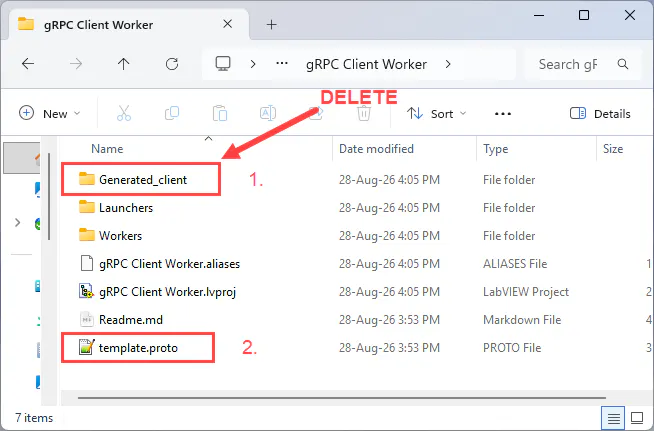
In template.proto, change the payloads of Msg_ToServer_1 and Msg_ToServer_2 to the following:
message Msg_ToServer_1 { bool run = 1; int32 position = 2; }
message Msg_ToServer_2 { double temperature = 1; }
Next, change the payload of Msg_ToClient_1 to:
message Msg_ToClient_1 { string error_message = 1; int32 error_code = 2; }The remaining messages are placeholders that you can customize for your own applications. You can change their payloads to use the protobuf data types supported by the NI gRPC implementation. The NI gRPC Repository and the official Protocol Buffers documentation provide additional information about defining protobuf messages and the data types available in .proto files.
Save template.proto.
Important to know: When editing template.proto, only change the message payloads and any supporting types you add. Do not rename the package, service, RPC, message names, or oneof case names. The NI gRPC Code Generator uses these identifiers when naming the generated files, VIs, typedefs, and classes. Keeping them unchanged ensures that the regenerated code remains compatible with the existing gRPC Worker templates.
Regenerating the gRPC Client Library
The next step is to regenerate the gRPC Client library so that it matches the new message definitions in template.proto.
Start LabVIEW again and select:
Tools > gRPC > Open gRPC Server-Client[2] - Code Generator...
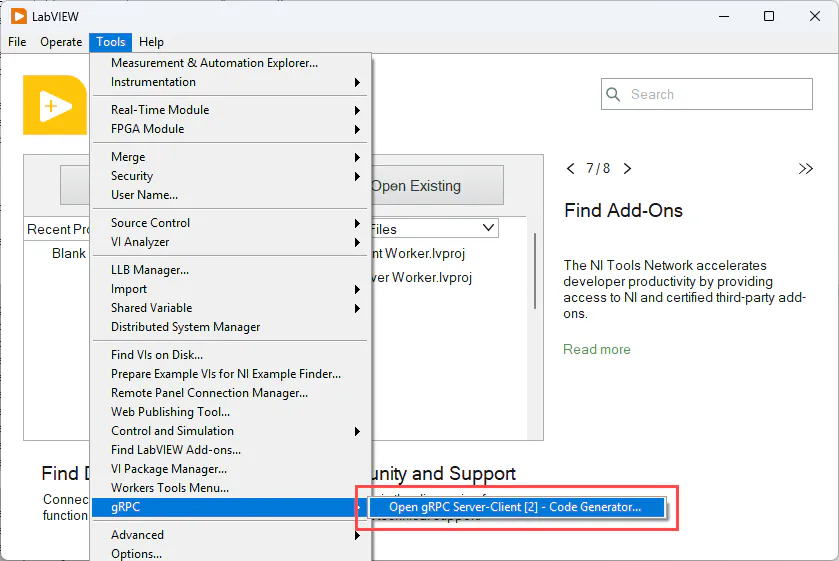
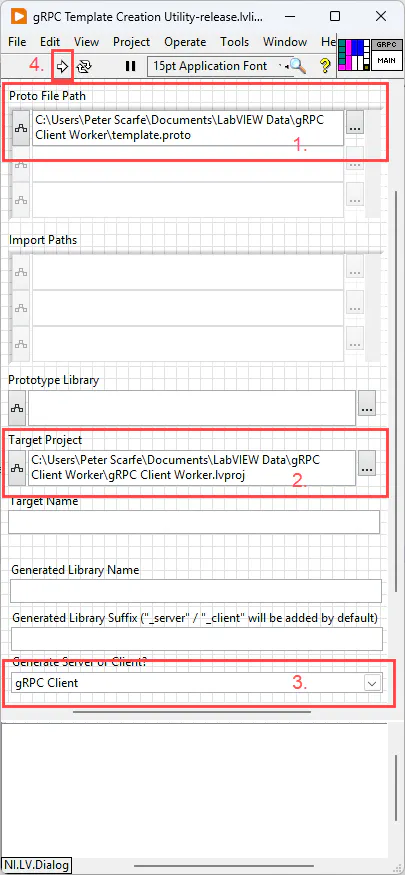
With the NI gRPC Code Generator open, perform the following steps:
For Proto File Path, enter the path to the modified template.proto file.
For Target Project, enter the path to the gRPC Client Worker LabVIEW project you created earlier.
For Generate Server or Client?, select gRPC Client.
Run the VI. The generator may take a few minutes to complete. Once it has finished, the gRPC Client Worker project should open automatically.

Save the gRPC Client Worker project and close it.
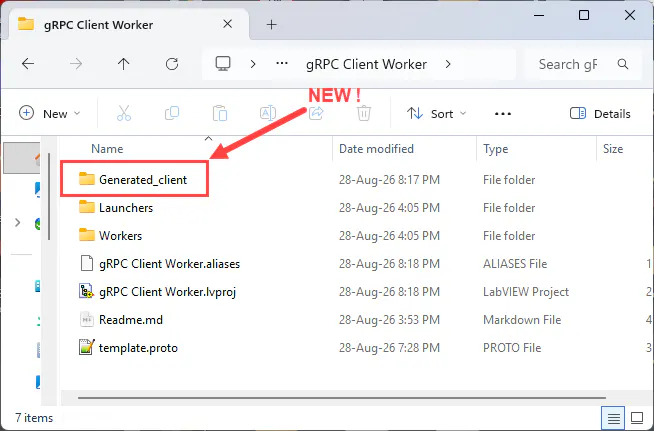
Back in the Windows Explorer folder for the project, you should now see that the Generated_client folder has been recreated, as shown in the screenshot below. Close the window.
Part B : gRPC Server Worker Project
The following steps repeat the process you just completed for the gRPC Client Worker project, but this time for the gRPC Server Worker project.
It is important that both projects use the same modified template.proto, because the gRPC Server and Client must implement the same message contract.
Modifying template.proto
Go to the folder where you saved your gRPC Server Worker project and do the following:
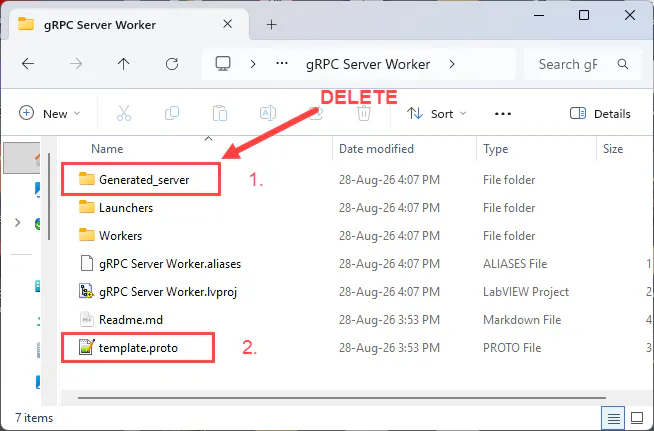
Delete the folder called Generated_server. For this walkthrough, we will regenerate this folder using the NI gRPC Code Generator.
Replace the existing template.proto file with the modified template.proto from your gRPC Client Worker project. This ensures that both the gRPC Server and Client are generated from exactly the same message contract.
Regenerating the gRPC Server Library
The next step is to regenerate the gRPC Server library so that it matches the new message definitions in template.proto.
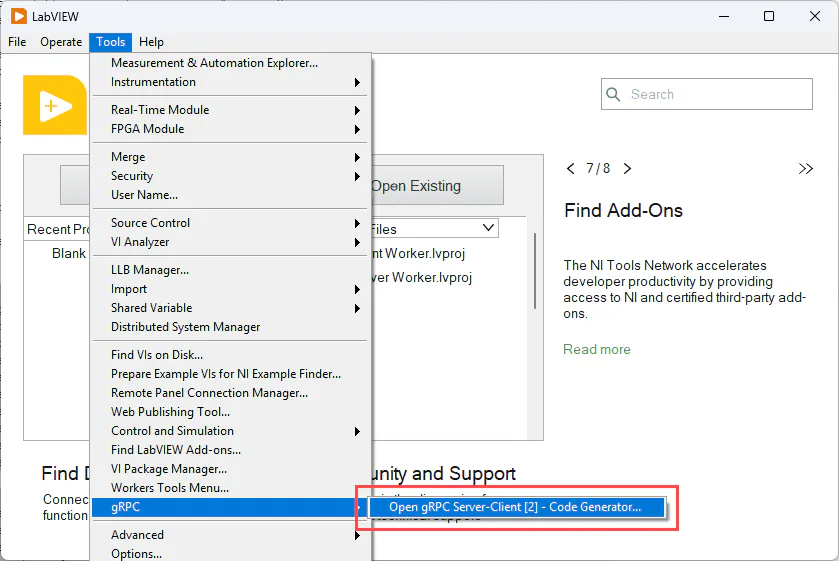
Start LabVIEW again and select:
Tools > gRPC > Open gRPC Server-Client[2] - Code Generator...
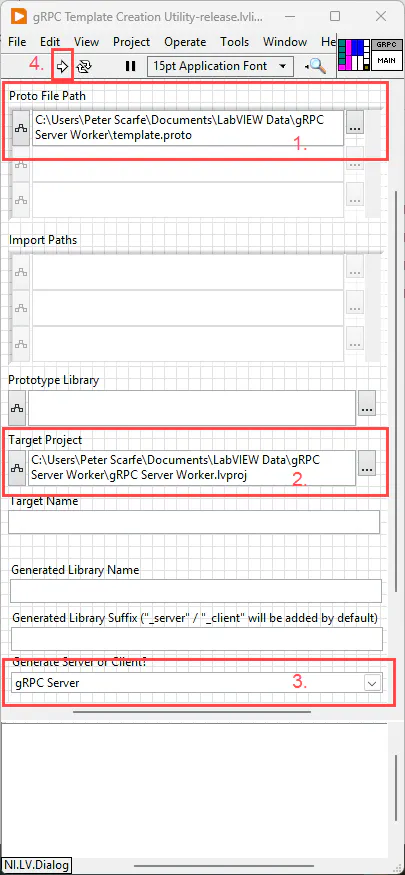
With the NI gRPC Code Generator open, perform the following steps:
For Proto File Path, enter the path to the modified template.proto file in the gRPC Server Worker project.
For Target Project, enter the path to the gRPC Server Worker LabVIEW project you created earlier.
For Generate Server or Client?, select gRPC Server.
Run the VI. The generator may take a few minutes to complete. Once it has finished, the gRPC Server Worker project should open automatically.

Save the gRPC Server Worker project and close it.
Close the NI gRPC Code Generator.
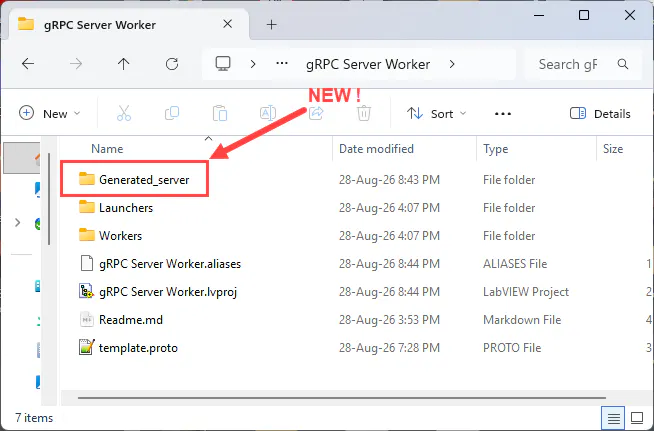
Back in the Windows Explorer folder for the project, you should now see that the Generated_server folder has been recreated, as shown in the screenshot below.
Part C : Testing your newly generated gRPC Messages
Now reopen both the gRPC Client Worker and gRPC Server Worker projects.
Run the Launcher VIs in both projects.
On the gRPC Server Tester, press Create gRPC Server.
On the gRPC Client Tester, press Create gRPC Client. As before, the Server and Client should connect and the corresponding status LEDs should light green.
Test the new message payloads. On the gRPC Server Tester, change the values in Msg_ToClient_1. The new message payload should be received and displayed in the corresponding indicator on the gRPC Client Tester.
On the gRPC Client Tester, change the values in Msg_ToServer_1 and Msg_ToServer_2. The new message payloads should be received and displayed in the corresponding indicators on the gRPC Server Tester.
Test the remaining gRPC messages, making sure that what is sent is received on the opposite tester UI.
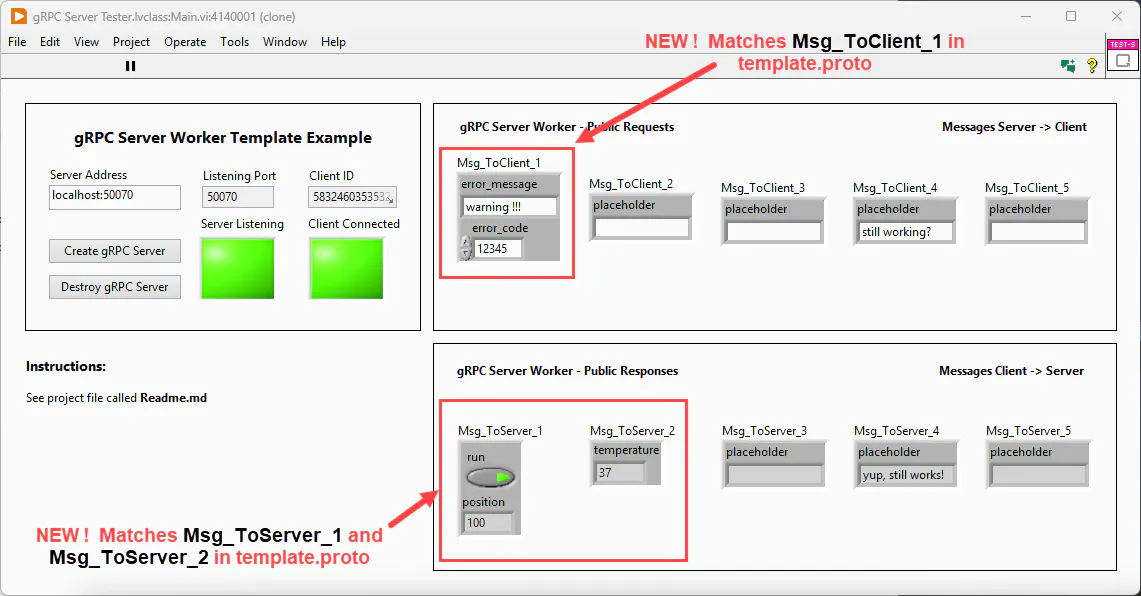
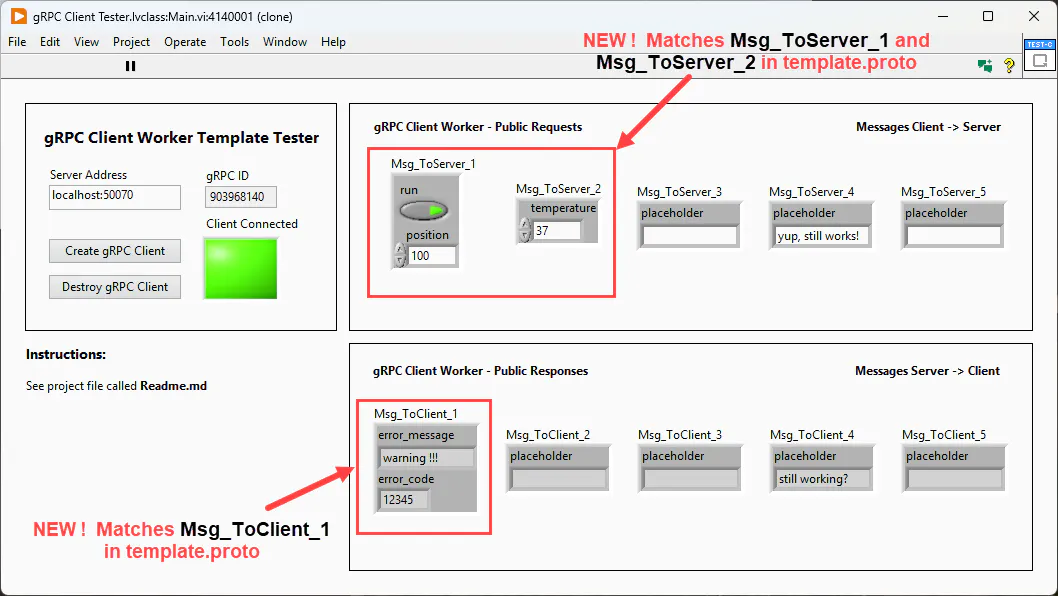
Notice that at no point did you need to modify the gRPC Server or Client Workers themselves. The Tester Workers ran immediately with the new payload typedefs. Because only the payload definitions were changed in template.proto, the names of the files, VIs, typedefs, and classes generated by the NI gRPC Code Generator remained unchanged. This allowed the existing Workers to re-link to the regenerated libraries automatically, with no manual rework required.
Conclusion
You have now demonstrated how to customize the gRPC Worker Templates by changing the message payload definitions in template.proto and regenerating the corresponding LabVIEW gRPC libraries with the NI gRPC Code Generator.
This provides a straightforward way to adapt the gRPC Worker Templates to the data required by your own applications while maintaining a common gRPC contract between the Server and Client.
In Part 3 (coming soon), we’ll look at a real example built from the gRPC Server Worker Template: the Workers ↔ Python Scope Example, which is already available with the Workers 5.1 beta. In this example, a Workers application simulates an oscilloscope in LabVIEW and communicates with a Python UI over the same bidirectional gRPC stream.