


Packed Project Libraries (PPLs) are commonly used in LabVIEW to create modular plugin architectures. However, once inheritance and dynamic loading are introduced, dependency management can quickly become difficult. This guide describes how to create a Worker PPL plugin.
For this example, we will take a working source-code example and turn it into a deployable PPL plugin architecture. To make it easy to follow, this guide uses the DMM HAL Demo Project that ships with the Workers SDK, allowing you to follow along with the steps. The result is a version of the example project in which both the DMM HAL and the DMM Workers are PPLs, suitable for deploying in production in place of the source code.
What you will need
The DMM HAL Demo Project — one of the example projects that ships by default with the Workers SDK. This is the Source Project you will work from throughout this guide.
LabVIEW Solution Builder — a free tool that builds packed libraries in the correct dependency order. Download the master branch from github.com/jovianarts/LVSolutionBuilder, then unzip it somewhere convenient..
LabVIEW 2019 or later — required by the LabVIEW Solution Builder.
Important: Source and PPL modules are not interchangeable
A library compiled into a PPL belongs to the PPL runtime tree. The same library in source form belongs to the development source tree. The two are not interchangeable: a PPL plugin cannot be loaded with source-based parents, and a source plugin cannot be loaded with PPL parents.
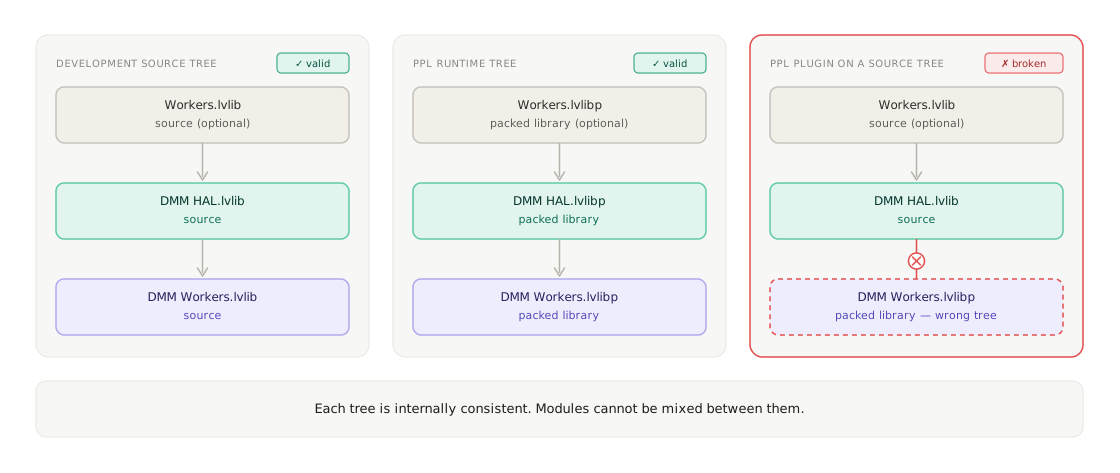
Because the source code and the PPLs belong to separate trees, the workflow uses two separate projects: a Source Project, where development takes place, and a PPL Project, where the built PPLs are assembled into an application. Steps 1–3 produce the PPL runtime tree from the development source tree. Steps 4–5 work within the PPL runtime tree.
Let's begin...
Before starting, create a copy of the DMM HAL Demo Project example project that ships with the Workers SDK. (This can be found under the Workers tools menu > Example Projects). Confirm that the example project runs correctly from source. The code should be working before it is built.
Step 1 — Organize the Source Project into libraries
The Solution Builder works at the library level, so each component to be turned into a PPL must reside in its own library.
Create a library named DMM Workers.lvlib and add the Worker plugins (Fluke, Keithley and Keysight DMM) to it.
Create a library named DMM HAL.lvlib and add DMM HAL.lvclass to it, together with its launchers — Asynchronous Launcher - DMM HAL.vi and Launcher - DMM HAL.vi.
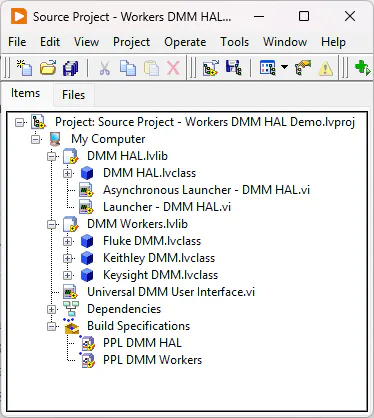
The Source Project should now contain two libraries, each holding one layer of the architecture, as shown below in Figure 2.
Step 2 — Create the packed library build specs
Create a Packed Project Library build specification for each library, as shown in Figure 2:
PPL DMM HAL — built from DMM HAL.lvlib.
PPL DMM Workers — built from DMM Workers.lvlib.
In each build spec, open the Source Files page and confirm that the library created in Step 1 is the source — not loose classes or VIs.
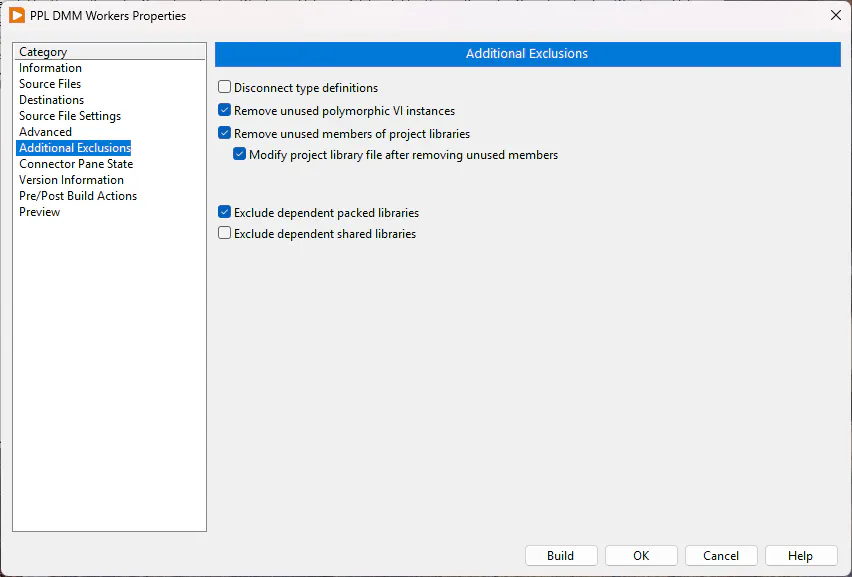
Open the Additional Exclusions page and tick Exclude dependent packed libraries, as shown below. This setting prevents the builder from embedding a private copy of the HAL inside the Workers PPL. Both PPLs then resolve to one shared HAL at runtime — a single shared class identity rather than two separate ones.
Step 3 — Build the PPLs with LabVIEW Solution Builder
The PPLs must be built in dependency order: the HAL first, then the Workers that depend on it. ⭐ Good news! You don't need to manually do this! The Solution Builder determines this order and carries out the builds.
Open SolutionBuilder.vi from the copy downloaded earlier from the LabVIEW Solution Builder GitHub repository, and point the Path field on the front panel to your Source Project.
Run SolutionBuilder.vi.
The Solution Builder analyses the library dependencies, builds PPL DMM HAL first, relinks it in memory, then builds PPL DMM Workers with the PPL DMM HAL as its linked dependency. After the tool completes, the Status for both build specifications should say Built.
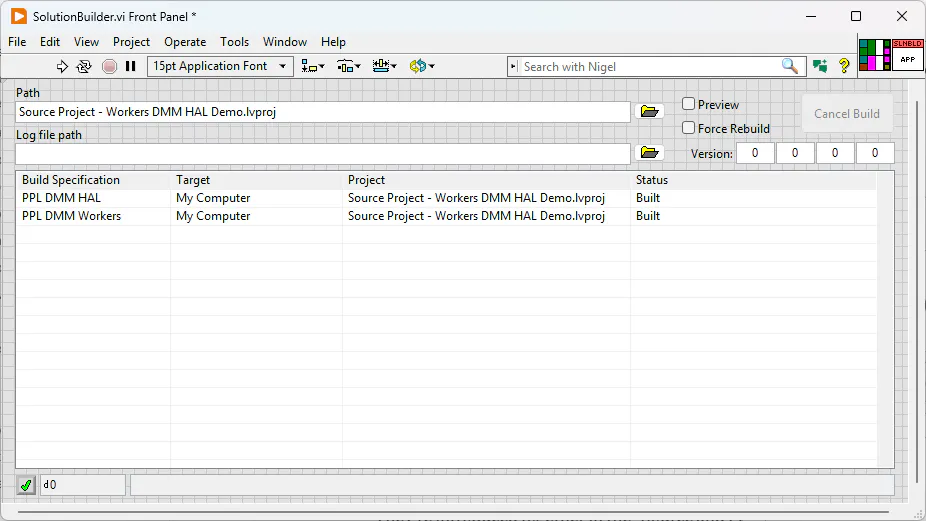
The two output PPLs — PPL DMM HAL.lvlibp and PPL DMM Workers.lvlibp — are written to the build destinations defined in their build specs. Note these locations; the files are needed in the next step.
Step 4 — Create the PPL Project
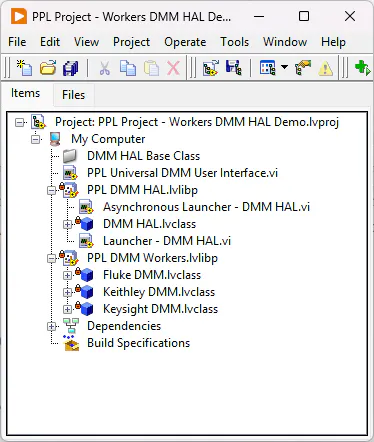
Create a new, separate project as shown in Figure 5 below, and add the two PPLs produced by the Solution Builder — PPL DMM HAL.lvlibp and PPL DMM Workers.lvlibp.
This is the PPL Project. Everything in it works with the packed libraries, which are not the same VIs the Source Project uses. This project corresponds to the PPL runtime tree in Figure 1 above.
Step 5 — Use the PPLs
The PPL Project needs its own top-level VI to run the example. Add a VI named PPL Universal DMM User Interface.vi (as in Figure 5) to the project. It can begin as a copy of the Universal DMM User Interface.vi from the Source Project, but every Worker class and Public API VI used on its block diagram must be replaced with the equivalent Worker class or VI from the PPL libraries, as shown in Figure 6 below. The Source Project and the PPL Project use different files, and the deployed VI must reference the PPL versions throughout.
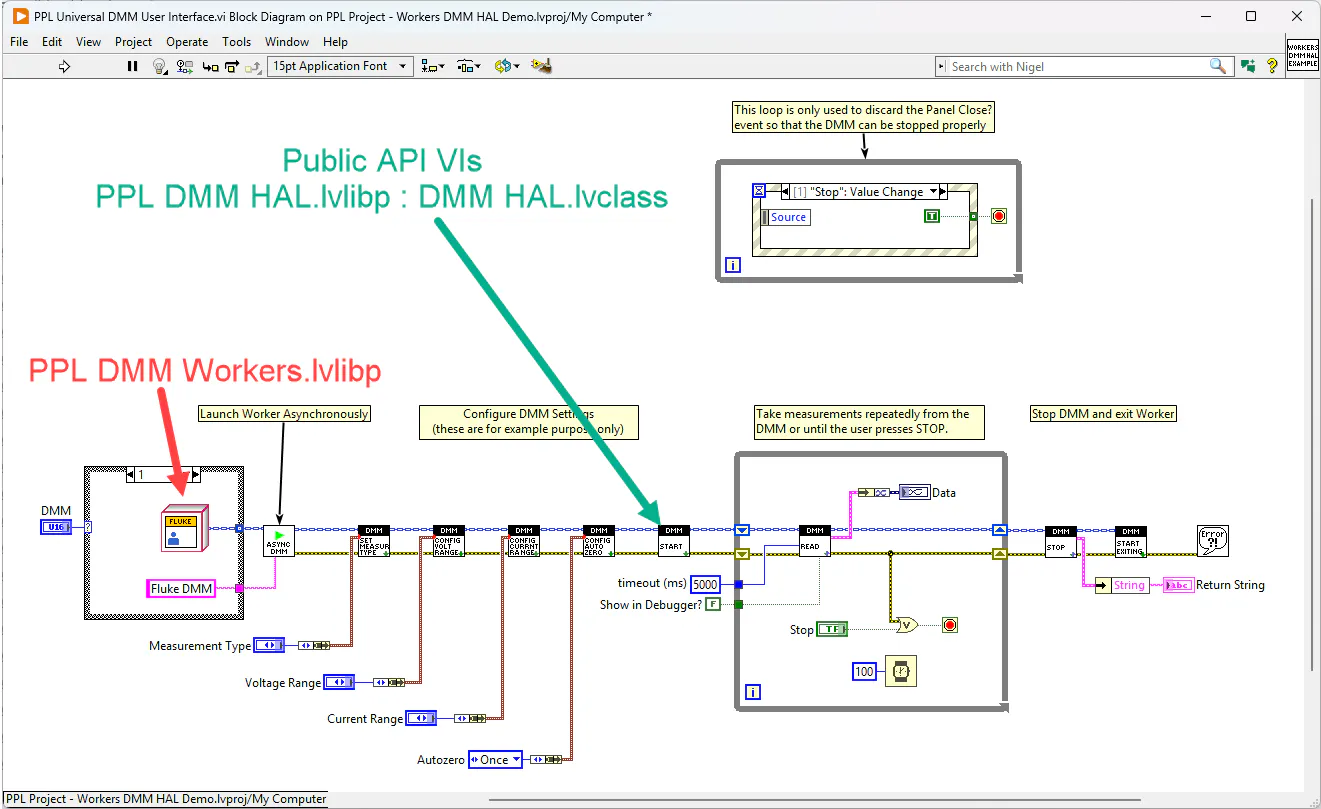
With that done, you have successfully built Worker PPL plugins. Because PPL DMM Workers.lvlibp was built with PPL DMM HAL.lvlibp as its linked dependency, its Worker classes inherit from the PPL HAL. A Worker (e.g. Fluke, Keithley, etc.) can therefore be wired directly into the PPL HAL Public API VIs.
Building every layer as a PPL, in dependency order, with Exclude dependent packed libraries enabled, places the whole system on a single PPL tree: one DMM HAL, one shared class identity, and any DMM Worker that inherits from it can be loaded without modification..
Step 6 — Update the Workers and rebuild
You can now continue development in the Source Project. New DMM Workers can be created, and existing ones modified, in the usual way.
To deploy those changes, run the Solution Builder again as in Step 3. As long as the DMM HAL source code is unchanged, the Solution Builder detects this and does not rebuild PPL DMM HAL — it rebuilds only PPL DMM Workers. The updated PPL is written to the same destination, and the PPL Project picks up the new Workers without any further changes.
This is the ongoing workflow: develop in the Source Project, build with the Solution Builder, and the PPL Project always references the built PPLs.
Best of luck! 🙂